Quick answer
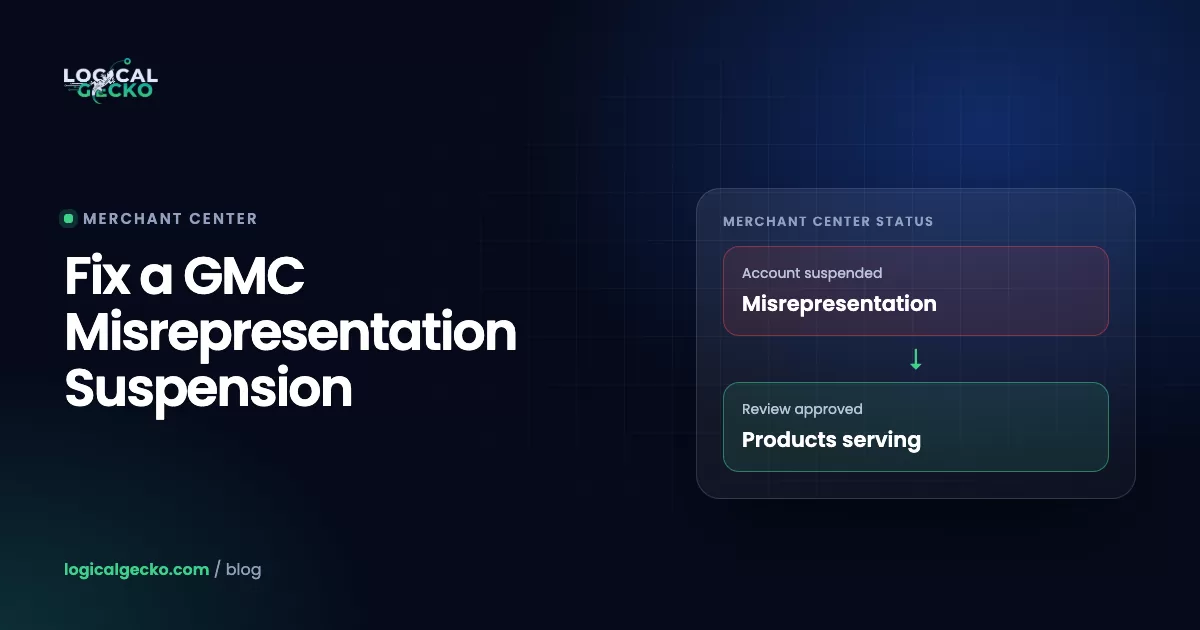
To fix a Google Merchant Center misrepresentation suspension, audit your whole store for trust gaps, not just the feed. Make your business details, contact info, shipping and return policies, prices and product claims consistent across your website and Merchant Center, complete identity verification, let Google recrawl, then request one well-prepared review. Reviews typically take 3 to 7 business days.
Key takeaways
- Misrepresentation is a trust verdict about your whole business, so fixing one policy page rarely clears it.
- Three parts of the policy (unacceptable business practices, coordinated deceptive practices and dishonest pricing) can suspend an account with no warning; the other three give at least 7 days' notice.
- Google's help center says a one-week cool-down may begin if your issues aren't resolved by the second review attempt, and it can grow with each failed review after that.
- You may only get one chance to use "I disagree with the issue", so only appeal when you can prove Google got it wrong.
- Opening a new Merchant Center account to get around a suspension breaks the Circumventing systems policy and can get you banned for good.
On this page
- What is Google's misrepresentation policy?
- Why was my Merchant Center suspended for misrepresentation?
- Is it a warning, a suspension or a product disapproval?
- How do you fix a Google Merchant Center misrepresentation suspension?
- What should a misrepresentation audit checklist include?
- Which Merchant Center settings do you need to fix?
- How do you request a review in Google Merchant Center?
- How many review requests do you get, and what is the cool-down period?
- How long does a Merchant Center misrepresentation review take?
- What should you do after a failed misrepresentation review?
- What mistakes keep a Merchant Center account suspended?
- How do you avoid scammers offering to fix your suspension?
- When should you get expert help with a misrepresentation suspension?
- FAQ
What is Google's misrepresentation policy?
Google's Merchant Center misrepresentation policy bans listings and websites that mislead people about a product or about the business selling it. That covers leaving out information someone needs before paying and presenting yourself or your products inaccurately. In practice, a misrepresentation suspension means Google doesn't trust your store enough to show it.
The current policy page splits misrepresentation into six categories, and they aren't enforced equally. Three are treated as egregious: the account is suspended on detection, with no warning. The other three come with a warning at least 7 days before any suspension.
| Policy category | What Google means (examples from the policy) | Enforcement |
|---|---|---|
| Unacceptable business practices | False identity, business name or contact info; impersonating brands; hiding your real location or where products ship from; refusing refunds your policy promises | Suspended on detection, no warning |
| Coordinated deceptive practices | Concealing your identity or country of origin on political or social-issue content | Suspended on detection, no warning |
| Dishonest pricing and transaction conditions | Hidden fees, taxes or shipping costs; undisclosed recurring charges; bait-and-switch; delivery times or restocking fees hidden in small print | Suspended on detection, no warning |
| Unavailable offers | Listing items you can't fulfill; faking local inventory or fast delivery | Warning at least 7 days before suspension |
| Manipulated media | Doctored media meant to deceive, especially on public-interest topics | Warning at least 7 days before suspension |
| Unreliable claims | "Miracle cure" or improbable results presented as likely; health claims that contradict scientific consensus | Warning at least 7 days before suspension |
If you've read older guides, you may have seen labels like "untrustworthy promotions", "omission of relevant information" or "unavailable promotions" in the suspension email. Google has reorganized the policy since then. The fixes are the same, but match your work to the categories above, because that's what reviewers check against today.
Why was my Merchant Center suspended for misrepresentation?
Almost always because several small trust gaps added up, not because of one obvious violation. Google rarely tells you which detail tipped the balance. Its systems compare your website, your Merchant Center settings, your product data and third-party sources, and they suspend when the story doesn't hold together.
The triggers we see most often on real stores:
- Mismatched business details. The business name, address or phone in Merchant Center differs from the website footer, contact page or Google Business Profile, even by a typo.
- Missing or hidden policies. No returns and refunds page, a shipping page with no delivery times, or policies that contradict the checkout.
- Shipping and returns that don't match. Merchant Center says free shipping over $50 and 3 to 5 days; the site says $75 and 7 to 14 days.
- Price and availability mismatches. Feed prices differ from the landing page, or the product shows in stock but the selected variant is sold out.
- Weak identity signals. A Gmail support address, no phone, no physical address, no About page, template text left in the theme.
- Risky claims and wording. "Dupe", "inspired by" or "replica" on branded goods, exaggerated health results, or discounts from an original price nobody ever paid.
- External signals. A lookalike domain impersonating your brand, a past account compromise, or links to previously suspended accounts.
Here's the pattern in our own recoveries. On the surface, Mirai Skin's store looked fine, but behind the single policy label sat weak footer trust signals, shipping and returns that didn't match Merchant Center, feed inconsistencies and variants missing images. Postery's case was complicated by a fraudulent lookalike domain and a past unauthorized access incident. Neither could be fixed by editing one page.
Is it a warning, a suspension or a product disapproval?
Check what state your account is in before you fix anything, because each one needs a different response. Account-level issues show as a banner at the top of Merchant Center and under Products › Needs attention › View setup and policy issues. Item-level issues appear against individual products on the same tab.
| Status | What's happening | What to do |
|---|---|---|
| Item disapproval | Specific products can't serve; the account is fine | Fix or remove the products. Edited products are re-reviewed automatically. |
| Account warning | A 7- or 28-day window to fix before suspension. Products may keep showing, sometimes with limited visibility. | Fix everything inside the window. You can request one courtesy review during the warning period. |
| Limited visibility | The account runs with "reserved functionality" while an issue is open | Read the email notice, fix the issue, then request review. |
| Account suspension | No products show in Shopping ads or free listings | Full audit, then a single review request (the rest of this guide). |
Good news if you're only warned: Google says that if you fix or remove the violating items during the warning period, the account is re-reviewed automatically at the end of it. You don't need to use up a review request.
How do you fix a Google Merchant Center misrepresentation suspension?
Fix the foundation first and request the review last. Almost every failed recovery we inherit comes from doing it the other way round. Work through these steps in order:
- Stop and read every notice. Open the suspension emails, the banner on the Home page and Products › Needs attention. Note the exact policy named, the country affected and any identity verification request. Don't click "Request review" yet.
- Pause risky changes. Don't bulk-upload products, add countries, switch feed apps or open another account while you work. Sudden changes look like evasion.
- Run the full website trust audit. Use the checklist in the next section. Go page by page, looking at your store the way a skeptical first-time visitor would.
- Make Merchant Center match the website. Business info, website verification, shipping and returns settings. Details are below.
- Clean the product data. Remove out-of-stock, zero-priced, quote-only and incomplete products. Fix price and availability mismatches and variant images. A smaller clean feed beats a large risky one.
- Complete identity verification. If "Needs attention" asks for it, upload clear government ID or business registration documents that match your account data. Google often requires this before the review button appears.
- Let Google see the changes. Make sure your data source has re-fetched (or update it manually) and give the site a few days to be recrawled. Keep a dated log with screenshots of every change.
- Request one review. Choose "I fixed the issue" unless you can prove Google made a mistake. Then wait for the email; don't resubmit while it's pending.
What should a misrepresentation audit checklist include?
It should cover every place a visitor, or Google's reviewer, decides if the business is real and accountable. Google's own Building trust guide lists business identity, transparency, online reputation and professional design. Here's that list turned into checks you can actually tick off.
Business identity and contact details
- Your legal business name appears in the footer, and it matches Merchant Center exactly, including spelling and legal suffix.
- A real physical address is listed, with a street number. No virtual address presented as headquarters.
- There's a working phone number and a support email on your own domain (support@yourstore.com, not a Gmail address).
- A dedicated Contact page shows the same details, plus business hours or response times.
- Details match your Google Business Profile, if you have one.
Policies: returns, refunds, shipping, privacy and terms
- Returns and refunds policy covers the return window, when it starts (delivery, not purchase), condition requirements, who pays return shipping, restocking fees and refund timing. If you don't accept returns, say so plainly.
- Shipping policy covers the countries you ship to, costs, the free-shipping threshold, handling time and transit time.
- If products ship from another country, the policy says so, along with any customs, duties or cross-border return costs.
- Privacy policy and terms of service are present and specific to your business, with no template placeholders.
- All policy pages are linked in the footer on every page and reachable before checkout.
Checkout and payment
- The whole site and checkout run on HTTPS, with no mixed-content warnings.
- Test orders complete without errors on desktop and mobile.
- Total cost is clear before payment: product price, shipping, taxes and any fees. Nothing new appears at the last step.
- Accepted payment methods are shown, and they're recognizable processors.
- Every product in the feed can be bought through checkout. Quote-only or "contact us to order" products belong outside Merchant Center.
Pricing, promotions and availability
- Feed price and sale price match the landing page and checkout for every variant.
- Compare-at or "was" prices are real prices you actually charged. Remove 70%-off-forever discounts.
- Expired sale banners and promo codes are gone.
- Fake scarcity ("only 2 left" on everything) and fake countdown timers are removed. They aren't named in the policy, but they erode the trust reviewers are judging.
- Variant availability on the page matches the feed.
Product claims and wording
- No "dupe", "replica", "inspired by", "1:1" or "clone" language on branded goods.
- No implied brand affiliation or "official" wording unless you are an authorized reseller and can prove it.
- No improbable outcomes ("lose 20 lbs in a week", "cures", "guaranteed results").
- Product descriptions are yours, not copied word for word from a supplier's catalog.
About page, domain and reputation
- An About page explains who runs the business, where it's based and how it operates, including dropshipping or print-on-demand if that's your model.
- The domain name matches the brand name used in Merchant Center, and the claimed domain is the one you sell from.
- Social profiles are linked and active, and they carry the same name.
- Reviews are genuine. Use a third-party review service to become eligible for store ratings.
- Search your brand name: are there lookalike sites, complaints or scam reports you need to address?
Site quality
- No "lorem ipsum", demo products, default theme copy or empty collection pages.
- No broken links, 404s from navigation, or redirects to unrelated pages.
- No password page, geo-block or bot protection that stops Google's crawler reaching landing pages.
Shopify and WooCommerce notes: On Shopify, write your policies under Settings › Policies and add them to the footer menu. Then check that the Google & YouTube app hasn't pushed different shipping or return settings into Merchant Center, because sync overwrites were part of our FragranceGems recovery. On WooCommerce, you manage SSL, the checkout and policy pages yourself. Replace any default refund and returns template text, check that your feed plugin sends sale prices and variant stock correctly, and make sure security plugins aren't blocking Google's crawler.
Which Merchant Center settings do you need to fix?
The settings that must mirror your website are business info, website verification, shipping and returns. A perfect website still fails review if Merchant Center describes a different business.
- Business info. Go to Settings › Business info › Edit business details. Enter the exact legal business name, the address from your footer, support phone and email, and your website. Google's guide on fixing missing contact information uses this same path.
- Online store verification. Confirm your website URL is verified and claimed, and that it's the domain your listings link to.
- Identity verification. Complete it as soon as "Needs attention" asks. Submitting false information in a verification program is itself listed as circumventing systems.
- Shipping. In Shipping and returns, set the same costs, free-shipping threshold, handling time, cut-off time and transit times your shipping page promises, per country.
- Return policies. In Shipping and returns › Return policies › Add return policy, enter the same window, conditions, fees and return method as your website. See Google's return policy setup guide.
- Country targeting. Only target countries you genuinely ship to, with matching currency and language. Our Enduclo recovery deliberately started with one country before expanding.
How do you request a review in Google Merchant Center?
Go to Products › Needs attention › View setup and policy issues, open the misrepresentation issue, choose I fixed the issue or I disagree with the issue, then select Request review. You can also start from "Review and fix" on the Home page, "Fix" on the account banner, or "Request review" in the Diagnostics tab.
A few prerequisites trip people up. According to Google's review request documentation:
- The review button may not appear until you complete identity verification.
- Your product data source can't be empty. If it is, add at least one product manually under Products to make the account eligible.
- A review covers all issues for that country, and their status changes to "Under review".
"I fixed the issue" or "I disagree with the issue"? Use "I fixed" when you've made changes, which is nearly always the case with misrepresentation. Use "I disagree" only when you can show Google got it wrong. Google warns you may only have one chance to disagree. For the egregious categories, "I disagree" is how you submit an appeal, and the policy says those accounts are reinstated only in compelling circumstances. Be thorough, specific and honest: list what you changed, and attach business registration documents if the form allows.
Don't request a review the same day you edit the site. Google checks the live site and the current feed. If the feed hasn't re-fetched or the pages haven't been recrawled, the reviewer sees the old store and you lose an attempt for nothing.
How many review requests do you get, and what is the cool-down period?
You get a small number of review attempts before Google locks the button. Google's help center says that if your issues aren't resolved by the second review attempt, a one-week cool-down may begin. Each unsuccessful review after that can lengthen it.
During a cool-down the review button is greyed out and the account stays suspended. Google states that its support team can't bypass or shorten the cool-down. You can see the end date under Products › Needs attention › View setup and policy issues. Use the time to audit properly instead of waiting for the button to come back.
This is exactly where Humane Innovations was when they came to us: a misrepresentation suspension, multiple failed appeals and no review options left in Merchant Center. After a full compliance rebuild, the review completed and 506 products were approved. Recovery was still possible, but it took far more work than getting it right the first time would have.
How long does a Merchant Center misrepresentation review take?
Google says review requests typically take 3 to 7 business days, and complex reviews can take longer. Once approved, products are eligible to show across Google within 24 hours. You get an email when the review is requested and another when it's completed.
Total recovery time is a different number. Add the audit and fix work (days for a small store, longer for a large multi-country catalog), the recrawl, the review itself and any cool-downs. A realistic plan for a clean first attempt looks like this:
| Phase | Typical duration | What drives it |
|---|---|---|
| Audit and fixes | A few days to several weeks | Catalog size, number of countries and languages, platform access, how many issues stack up |
| Recrawl and feed refresh | A few days | Feed fetch schedule, site size |
| Google's review | 3 to 7 business days (can be longer) | Complexity of the case, per Google |
| Products showing again | Within 24 hours of approval | Per Google |
| Each failed review | Adds at least another review cycle, plus any cool-down | Starting with one week, which can increase |
What should you do after a failed misrepresentation review?
Assume the review failed for a reason you haven't found yet, not because the reviewer was wrong. Don't resubmit the same case. Go back through the audit with fresh eyes, and look beyond your own website.
- Re-read the rejection email for any change in the policy named or the country affected.
- Test the store as a stranger. Use a clean browser on mobile, add to cart, reach the payment step and note every surprise.
- Compare three sources line by line: website, Merchant Center settings and the feed. Mismatches hide in variants, other currencies and translated pages.
- Check external signals. Search your brand for lookalike domains, scam reports or old marketplace listings under your name. If someone is impersonating you, document it and report it to the registrar and host.
- Cut the feed back. Temporarily remove risky categories, dropshipped vendors you can't vouch for, and anything without a clear price.
- Write down the story. A dated log of changes, plus evidence for anything unusual like a past account compromise, lets the review reflect the full context.
Postery is the clearest example. Google had told them the decision was "unlikely to be reversed" after multiple failed reviews. After a full compliance reset and a documented escalation covering the lookalike domain and the past access incident, the misrepresentation flag was removed and 62,177 products were approved.
What mistakes keep a Merchant Center account suspended?
The most damaging mistakes are requesting reviews too quickly and trying to work around the suspension. Both use up the goodwill you need to recover.
| Mistake | Why it hurts |
|---|---|
| Requesting a review before fixing everything | Burns an attempt and moves you toward a cool-down |
| Opening a new Merchant Center account, or relaunching on a new domain | Named as circumventing systems, an egregious violation that can mean a permanent ban |
| Choosing "I disagree" when you actually changed things | You may only get one chance to disagree |
| Fixing only the page an online guide mentioned | Misrepresentation is cumulative; the other gaps remain |
| Letting an app re-sync old settings | Overwrites your corrected shipping and returns in Merchant Center |
| Bulk-uploading the whole catalog right after approval | Can re-trigger misrepresentation right after approval, a key lesson from our Enduclo recovery |
| Arguing or blaming Google in the appeal | Reviewers act on evidence, not frustration |
How do you avoid scammers offering to fix your suspension?
Treat any unsolicited offer to "unsuspend" your Merchant Center with suspicion. Google Product Experts in the Merchant Center Community have publicly warned that people are impersonating Product Experts, sometimes using their real names, to sell paid fixes. They've also warned about cheap marketplace gigs offering to fix Merchant Center accounts.
Red flags to watch for:
- They claim to be from Google, or to have "a contact inside the policy team". Google's policy teams don't sell reinstatements.
- They guarantee approval or a fixed number of days. Nobody controls Google's review outcome.
- They ask for your Google account password or 2-step codes. Legitimate help gets added as a user in Merchant Center, with access you can remove.
- They want to open a fresh account for you, or "use an aged account". That's circumventing systems, and it puts your business at permanent risk.
- They want to request a review immediately, before looking at your site.
Anyone worth hiring will start with an audit, explain what they found, and tell you that Google makes the final decision.
When should you get expert help with a misrepresentation suspension?
Get help when you've already had a review rejected, when you're in a cool-down, when Google calls the case egregious, or when the store is large, multi-country or dependent on Shopping revenue. At that point every attempt is expensive, and a second opinion on what Google is seeing usually pays for itself.
If you'd rather hand it off, Logical Gecko's Merchant Center misrepresentation fix service runs this exact process for you: the audit, site and settings alignment, feed cleanup and a single well-timed review request. You can see the results in our GMC case studies. Mirai Skin recovered with 9,973 products approved out of about 10,000, and Postery went from "unlikely to be reversed" to 62,177 approved. For suspensions under other policies, see our GMC compliance and suspension fix. And once you're approved, ongoing Merchant Center management keeps the feed and settings from drifting back into risk.
Frequently asked questions
Does a Merchant Center suspension stop my Google Ads?
It stops everything that relies on your product data: Shopping ads, Performance Max product ads, dynamic remarketing and free listings. Your Search campaigns can usually keep running, unless Google also suspends the Google Ads account itself. That does happen: in our FragranceGems recovery, the Ads account was affected too. Check both accounts' notifications before you assume only one is affected.
Can I create a new Merchant Center account after a suspension?
No. Google's Circumventing systems policy lists creating new accounts to re-enter Shopping after a suspension as an egregious violation. That can lead to suspension on detection, with no warning and no option to list again. Fix and review the original account instead.
Does Google allow dropshipping in Merchant Center?
Yes. Dropshipping isn't banned, but you must be honest about fulfillment. The misrepresentation policy specifically prohibits hiding where products ship from, or showing a false local address, to create an impression of fast local delivery. Show real handling and transit times, a real business address and a return process that works from the country you ship to.
Is a Google Merchant Center misrepresentation suspension permanent?
Not usually. Most trust-related suspensions are lifted once the site and account are fixed and a review succeeds. The risk rises when Google classes the case as egregious (unacceptable business practices, dishonest pricing or circumvention). Those accounts are reinstated only in compelling circumstances, and repeated failed reviews trigger longer cool-downs.
How do I request a re-review from Shopify's Google & YouTube app?
In your Shopify admin, open Sales channels, then Google & YouTube, then the Settings tab, and select Request re-review under your Google account. Complete the Google form that opens and submit it. You can also request the review directly in Merchant Center, which shows the account-level issue with more detail.
What does "Website needs improvement" mean in Merchant Center?
Google groups it with misrepresentation. It means your site doesn't yet look complete or trustworthy enough to show products. Typical causes are placeholder text, broken links, missing contact details, hidden policies or a checkout that doesn't work. The fix is the same trust audit covered in this guide, followed by a review request.
Will a Merchant Center suspension hurt my organic Google rankings?
A suspension removes your products from Shopping ads and free listings. It doesn't remove your website from regular Google Search results. That said, the same things that trigger misrepresentation, like thin pages, missing policies and copied supplier content, also make a store weaker for organic search, so the audit helps both.
Sources7 references
- Google Merchant Center Help: Misrepresentation
- Google Merchant Center Help: Fixing Merchant Center warnings and account suspensions for policy violations
- Google Merchant Center Help: Request a review of your account or products
- Google Merchant Center Help: Building trust (answer 13693865)
- Google Merchant Center Help: Abuse of the network (Circumventing systems)
- Google Merchant Center Help: How to fix missing contact information on your online store
- Google Merchant Center Help: Set up your return policies for Shopping ads and free listings