Quick answer
Google Merchant Center is Google's free tool for uploading your product data so your products can appear in Shopping ads, free listings and other Google surfaces such as Search, Images, YouTube and Gemini. It holds your catalog, business details, shipping and return policies. Google Ads then pulls that data to build Shopping and Performance Max product ads.
Key takeaways
- Merchant Center is free; you pay only if you run Shopping or Performance Max ads through a linked Google Ads account.
- Google renamed Merchant Center Next to plain Merchant Center in July 2026, so older tutorials with Feeds or Tools menus describe a retired interface.
- Set up business info, website verification, shipping and returns before you upload a single product, and pick the business country carefully because it can't be changed.
- Google names wrong GTINs, low-quality images and conflicts between feed and website data as common disapproval causes, so match every price and stock status to the product page.
- Shopping ads need a Google Ads link made under Settings › Access and services › Apps and services, and each campaign reads from one Merchant Center account.
On this page
- What is Google Merchant Center?
- How does Google Merchant Center work?
- Free listings vs Shopping ads: what is the difference?
- How do you set up Google Merchant Center step by step?
- Which product data attributes matter most?
- Why do Merchant Center products get disapproved?
- How do you connect Shopify, WooCommerce or BigCommerce to Merchant Center?
- Which setup mistakes get Merchant Center accounts suspended?
- How does Google Merchant Center interact with Google Ads?
- FAQ
What is Google Merchant Center?
Google Merchant Center is a free Google tool where you upload and manage your product data so your products can show in Shopping ads, free listings and other Google surfaces. It stores each product's title, price, image, availability and identifiers, along with your business details and your shipping and return policies. Google reads that data to decide where and how your products appear.
Merchant Center does three jobs for an online store:
- It is the catalog Google reads. Every free listing and product ad starts from your account data.
- It is the review desk. Google checks each product and your store against its policies.
- It is the data source for Google Ads. Standard Shopping campaigns and Performance Max product ads can't run without a linked Merchant Center account.
Merchant Center doesn't take payments. People buy on your website, so your site and your Merchant Center data have to agree on every detail.
The name changed recently. Google moved every account to a redesigned interface called Merchant Center Next by October 2024, then dropped the "Next" label in July 2026 (Google's announcement). It is now just Google Merchant Center. Tutorials that mention a Feeds menu or a wrench-shaped Tools icon describe the retired classic version.
How does Google Merchant Center work?
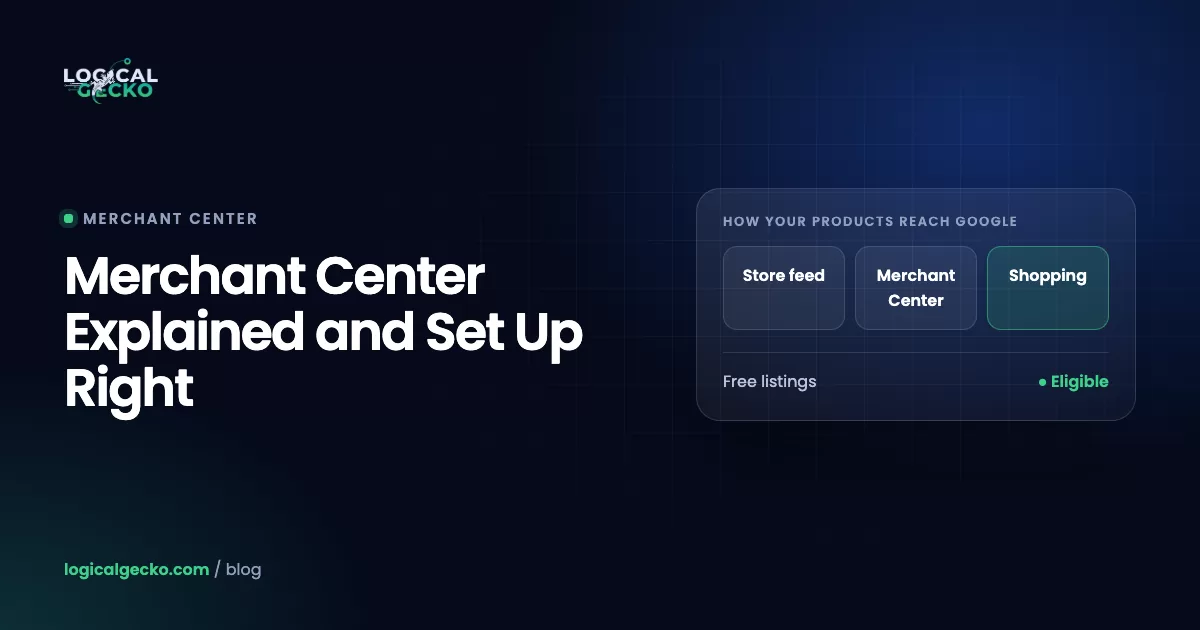
Merchant Center works as a loop: you send product data, Google reviews it against your website and its policies, and approved products become eligible for free listings and, once you link Google Ads, for paid ads. Five parts of the account decide whether that works.
| Part | What it holds | Where to find it now |
|---|---|---|
| Business info | Business name, registered address, support phone and email, online store URL | Settings › Business info |
| Products and data sources | Your catalog and the method that delivers it: platform app, feed file, Google Sheets, website crawl or Merchant API | Settings › Data sources, and Products & store › Products |
| Shipping and returns | Shipping costs, handling and transit times, return window, return method and fees | Products & store › Shipping and returns |
| Verification | Proof that you own the website, plus a claim that reserves the URL for your account only | Settings › Business info › Edit online store |
| Google Ads link | The connection that lets Shopping and Performance Max campaigns use your products | Settings › Access and services › Apps and services |
Which data source should you use?
Most stores should sync through their ecommerce platform, so there is no second catalog to maintain. Google documents five upload methods in How to upload your products to Merchant Center:
| Method | How it updates | Best fit |
|---|---|---|
| Ecommerce platform app | Syncs from Shopify, WooCommerce and others; Google says changes take 24 to 48 hours to reflect | Most Shopify, WooCommerce and BigCommerce stores |
| File (feed) | Upload once, or host at a URL that Google fetches every 24 hours | Custom-built stores and feed management tools |
| Google Sheets | Google's template, synced every 24 hours | Small catalogs edited by hand |
| Automatic from your website | Google crawls schema.org product markup on your pages | Simple stores with clean structured data |
| Merchant API | Programmatic updates as often as you send them | Large or fast-changing catalogs with developer support |
API change: Google sunset the Content API for Shopping on August 18, 2026, and the Merchant API replaced it. A custom integration or old plugin still calling the Content API no longer updates your products.
Free listings vs Shopping ads: what is the difference?
Free listings are unpaid product listings that Google shows organically. Shopping ads are paid placements you buy through Google Ads and pay for per click. Both read the same Merchant Center data, so one clean catalog serves both.
| Free listings | Shopping ads | |
|---|---|---|
| Cost | Free | Cost per click, set by auction |
| Google Ads account | Not needed | Required, linked to Merchant Center |
| Where they show | Search, the Shopping tab, Images, Lens, Maps, YouTube and Gemini | Sponsored spots on Search and the Shopping tab, plus Images, YouTube and search partner sites |
| How to turn on | On by default for new accounts; check under Marketing › Marketing methods | Link Google Ads, then build a Shopping or Performance Max campaign |
| Your control | None beyond data quality; Google ranks by relevance | Budgets, bids, product groups and search term exclusions |
| US requirement | Shipping settings or the shipping attribute | Same, plus Google Ads policies |
Free listings
- No cost per click
- No bids or budgets to manage
- Placement depends on relevance only
- Traffic volume is hard to grow on demand
Shopping ads
- You pay for each click
- Budgets and bids control reach
- Priority spots above organic results
- Spend scales up or down in a day
Run both. Free listings surface data problems early at no cost, and Shopping ads buy the visibility free listings can't guarantee. Google's free listings documentation requires shipping settings for US products.
How do you set up Google Merchant Center step by step?
Set up Merchant Center in this order: fix your website, create the account, complete business info, verify the site, add shipping and returns, then upload products and link Google Ads. Uploading products first means Google reviews them against an unfinished account, which creates issues you could have avoided.
- Prepare your website. Publish a contact page with a phone number, an email on your domain and a business address. Link clear shipping and return policy pages in the footer, and remove placeholder products and $0 prices. Google reviews the whole store, including pages beyond your products.
- Create the account. Go to merchants.google.com with the Google Account you will keep long term. One Google Account email can create only one Merchant Center account. Enter your business name, your business country and where you sell (online, in a physical store, or both). The country can't be changed later.
- Complete business info. Go to Settings › Business info › Edit business details. Use the business name shown on your site, your registered address, and a support phone and email that match your contact page exactly.
- Verify and claim your website. In Settings › Business info, select Edit online store and enter your URL. Verify through your ecommerce platform, email, an HTML tag or file, Google Tag Manager or Google Analytics (verification methods). Claiming then reserves the URL for your account; one URL can be claimed by only one account.
- Add a shipping policy. Go to Products & store › Shipping and returns › Shipping policies › Add shipping policy. Choose the countries you ship to, set handling and transit times, and enter costs that match your checkout. Google allows up to 20 shipping policies per country.
- Add a return policy. In the same section, open Return policies › Add return policy. Enter your policy URL, return window, accepted conditions, return method, restocking fee and refund time. Google verifies the policy and shows its status as Verified, Pending or Rejected.
- Add your products. Go to Products & store › Products, select Add products, then choose your platform, a file, Google Sheets or the API. Adding products one by one only works for accounts that already have products.
- Clear every issue. Check Notifications and the Needs attention tab on the Products page. Fix account-level issues first; they block every product.
- Link Google Ads. When products are approved, link your Google Ads account (steps in the Google Ads section below).
Watch out: Use a business Google Account, not a staff member's personal login. If that person leaves, opening a second account for the same store to regain access breaks Google's rules.
If you would rather have it built and monitored for you, our Merchant Center management service handles the account from first upload to the Google Ads link.
Which product data attributes matter most?
Ten attributes decide whether a product gets approved and how well it matches searches: id, title, description, link, image_link, price, availability, brand, gtin and condition. The limits below come from Google's product data specification.
| Attribute | Required? | Format and limits | What trips it up |
|---|---|---|---|
id | Yes | Max 50 characters; use the SKU | Changing IDs, which discards the product's history |
title | Yes | Max 150 characters | Promotional text such as "free shipping", all caps, or a title that differs from the product page |
description | Yes | Max 5,000 characters | Links, sale messages or other products in the text |
link | Yes | URL on your verified domain, starting with http or https | Broken pages, redirects to the homepage, interstitials |
image_link | Yes | JPEG, WebP, PNG, GIF, BMP or TIFF; 500 x 500 pixels minimum enforced from January 31, 2027 | Watermarks, text overlays, borders, placeholders, upscaled thumbnails |
price | Yes | Number plus ISO 4217 currency, such as 15.00 USD; no US sales tax | A price that differs from the page or checkout, or a price of 0 |
availability | Yes | in_stock, out_of_stock, preorder or backorder | Feed says in stock while the page says sold out; preorder without availability_date |
brand | Yes for new products (except movies, books and music) | Max 70 characters | Values such as "N/A" or "Generic"; your store name on another maker's product |
gtin | Whenever the manufacturer assigned one | UPC in North America; up to 14 digits per value, no dashes | Made-up or reused codes, which get the product disapproved |
condition | Yes for used or refurbished items | new, refurbished or used | Refurbished stock left on the default "new" |
For private-label or handmade goods without a GTIN, submit brand plus MPN, or set identifier_exists to no. Never invent a GTIN.
Titles matter most after approval, because Shopping ads match searches from product data, not keywords. Use brand, product type, then the attribute people filter by: "Acme Trail Runner Men's Running Shoe, Black, Size 10" beats "Trail Runner Black".
Why do Merchant Center products get disapproved?
Products get disapproved when their data conflicts with the product page or breaks the specification. Google names the usual causes itself: wrong GTINs, missing variant details such as color or size, low-quality images, and data that differs between your feed and your website. Google crawls your pages and compares them with the feed, so any gap in price, stock or identity gets flagged.
| Issue | Usual cause | Fix |
|---|---|---|
| Price mismatch | Sale ended on the site but not in the feed, or page caching shows an old price | Sync more often, use sale_price with dates, clear cache on price changes |
| Availability mismatch | Variant sold out on the site, still in_stock in the feed | Sync variants individually; hide or mark out-of-stock items correctly |
| Invalid or incorrect GTIN | Supplier codes that belong to another product, or invented numbers | Use the manufacturer's UPC, or remove the value and set identifier_exists to no |
| Image problems | Promotional text, watermark, placeholder or tiny image | Use a clean product photo on a plain background |
| Landing page not working | 404 pages, blocked by robots.txt, or behind a login or password | Fix the URL and let Googlebot crawl product pages and images |
| Missing shipping | No shipping policy covering the US | Add one under Shipping and returns |
| Policy violation | Restricted products, unsupported claims, or misleading store information | Remove the product or fix the claim, then request a review |
Find every flagged product under Products › Needs attention. The issue name tells you which attribute failed.
How do you connect Shopify, WooCommerce or BigCommerce to Merchant Center?
Each major platform has a free official connector that links Merchant Center and syncs products automatically. After that, edit products in the platform, not in Merchant Center, because the sync overwrites manual edits.
Shopify
- Install the Google & YouTube sales channel from the Shopify App Store, connect your Google Account, then connect or create a Merchant Center account. Products available to your online store sync automatically and are opted in to free listings.
- Add GTINs in each variant's barcode field. For products without one, add brand and MPN in the app's product fields.
- Shipping rates from a third-party Shopify shipping app can't be imported. Google says you must set those rates manually in Merchant Center.
- Initial syncs can take up to 3 days, and later edits 24 to 48 hours.
In the FragranceGems recovery, a Shopify store suspended for misrepresentation, the sync was overwriting Merchant Center settings and the feed held €0.00 prices and out-of-stock products. Cleaning both up was part of getting approved again.
WooCommerce
- Install the free Google for WooCommerce extension. Its setup wizard connects your Google Account, Merchant Center and, if you want, Google Ads.
- Fill brand, GTIN and MPN in the extension's product attribute fields, so identifiers don't depend on guesswork.
- Make sure the page price, the markup price and the checkout price match, especially with caching or currency plugins.
BigCommerce
- Connect the Google Shopping channel in Channel Manager. Once connected, products are eligible for free listings and Performance Max.
Which setup mistakes get Merchant Center accounts suspended?
Suspensions come from trust problems across the whole store, not single product errors. The trigger we see most in recovery work is misrepresentation: Google decides it can't trust your business information, pricing or policies.
- Business name, address or phone in Merchant Center that differs from the website
- No visible contact page, or only a form with no email or phone
- Return and shipping terms that differ between the site, the checkout and Merchant Center
- Supplier descriptions copied onto product pages, especially for dropshipped items
- Quote-only or unpurchasable products mixed in with normal checkout products
- Uploading thousands of products before the account is stable
- Opening a second account to get around a problem on the first
Most of these appeared in recoveries we have run. Humane Innovations, a US Shopify store with 512 products, had copied supplier descriptions, quote-only products and mismatched variant availability, and had run out of review options. After a compliance rebuild and a staged rollout, 506 products were approved.
If you are already suspended, follow the misrepresentation fix guide before you request a review. For a done-for-you recovery, see the GMC suspension fix service. More recoveries, with their numbers, are on the Merchant Center case studies page.
How does Google Merchant Center interact with Google Ads?
Merchant Center passes your product data to Google Ads, and Google Ads uses it to build Shopping and Performance Max product ads. Merchant Center holds what you sell; Google Ads holds budgets, bids and targeting. Google Ads sends clicks and conversions back to Merchant Center reports.
How to link the accounts
Link from Merchant Center under Settings › Access and services › Apps and services › Add service › Google Ads, then select your Google Ads account and choose Link. By default the link also connects Google Ads to your Business Manager; choose Link to Merchant Center only if you don't want that. If someone else owns the Ads account, send a request with its account ID, and an admin approves it in Google Ads under Tools › Data manager › Google Merchant Center › Manage & link on the Received tab (Google's linking guide).
Four rules from Google's documentation:
- One Merchant Center account can link to up to 500 Google Ads accounts.
- A Google Ads manager (MCC) account can't be linked directly; link the client account.
- Each campaign reads from one Merchant Center account. Switching accounts means building a new campaign.
- Unlinking stops every campaign that uses your product data.
Standard Shopping or Performance Max?
Standard Shopping shows product ads on Search and the Shopping tab, and you control bids by product group. Performance Max uses the same feed but also serves on YouTube, Display, Gmail, Discover and Maps, with Google's automation choosing placements. Many stores run Performance Max for reach and Standard Shopping for control over hero products.
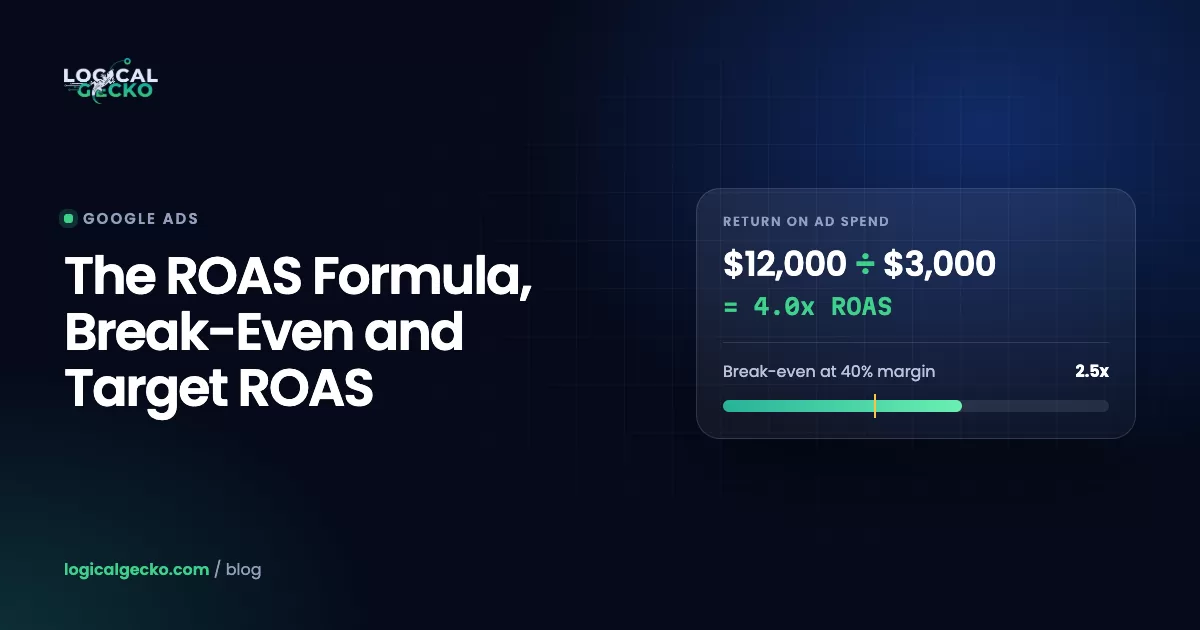
Once ads are live, judge them by profit, not clicks. The ROAS formula guide shows how to find your break-even ROAS before you set a Target ROAS. When you want the campaigns built around those numbers, our eCommerce Google Ads management starts with the same Merchant Center data this guide sets up.
Frequently asked questions
Is Google Merchant Center free?
Yes. Creating a Merchant Center account, uploading products and showing them in free listings costs nothing. You only pay when you run Shopping ads or Performance Max campaigns through a linked Google Ads account, where you are charged per click. Feed tools, apps and agencies that manage the account for you are separate costs, and Google does not require any of them.
What is Google Merchant Center Next?
Merchant Center Next was the name of the redesigned Merchant Center that replaced the classic version. Google finished moving every account to it by October 2024. In July 2026 Google dropped the Next label, so the same product is now called Google Merchant Center. Your account, products and logins did not change with the rename.
How long does Google Merchant Center take to approve products?
New products usually show a pending initial review status, and Google's in-product message says the review takes up to 3 business days. Products synced from an ecommerce platform can take up to 3 days to appear at all. Reviews that run past a week usually point to an account-level issue, so check Notifications and the Needs attention tab in Products.
What are two commonly used programs in Google Merchant Center?
The two most commonly used programs are Shopping ads and free listings. Free listings show your products at no cost on Google surfaces such as the Shopping tab, Search and Images. Shopping ads are paid placements you run through a linked Google Ads account. Both read the same product data from Merchant Center, which is also the answer Google's Shopping ads certification expects.
Do I need Google Ads to use Merchant Center?
No. Merchant Center works on its own for free listings, which are turned on by default for new accounts. You need a linked Google Ads account only for paid placements: Standard Shopping campaigns and Performance Max campaigns that show your products. Many stores start with free listings to fix product issues, then link Google Ads once the catalog is clean.
How do I delete a Google Merchant Center account?
Open Settings in the left menu, select General, stay on the Account setup tab, scroll down and select Close Merchant Center account. Confirm the disclaimer and close it. Closing is permanent. Never close and reopen an account to escape a suspension; Google treats a replacement account as circumventing its systems, which can end in a permanent ban.
Sources11 references
- Google Merchant Center Help: Get started with Merchant Center
- Google Merchant Center Help: Merchant Center Next is now Merchant Center
- Google Merchant Center Help: Get to know your way around Merchant Center
- Google Merchant Center Help: How to upload your products to Merchant Center
- Google Merchant Center Help: Product data specification
- Google Merchant Center Help: Free listings for products
- Google Merchant Center Help: Set up shipping settings for an entire account
- Google Merchant Center Help: Set up your return policies for Shopping ads and free listings
- Google Merchant Center Help: About online store URL verification
- Google Ads Help: Link a Google Ads account to Merchant Center
- Google for Developers: Content API for Shopping release notes (sunset August 18, 2026)