Quick answer
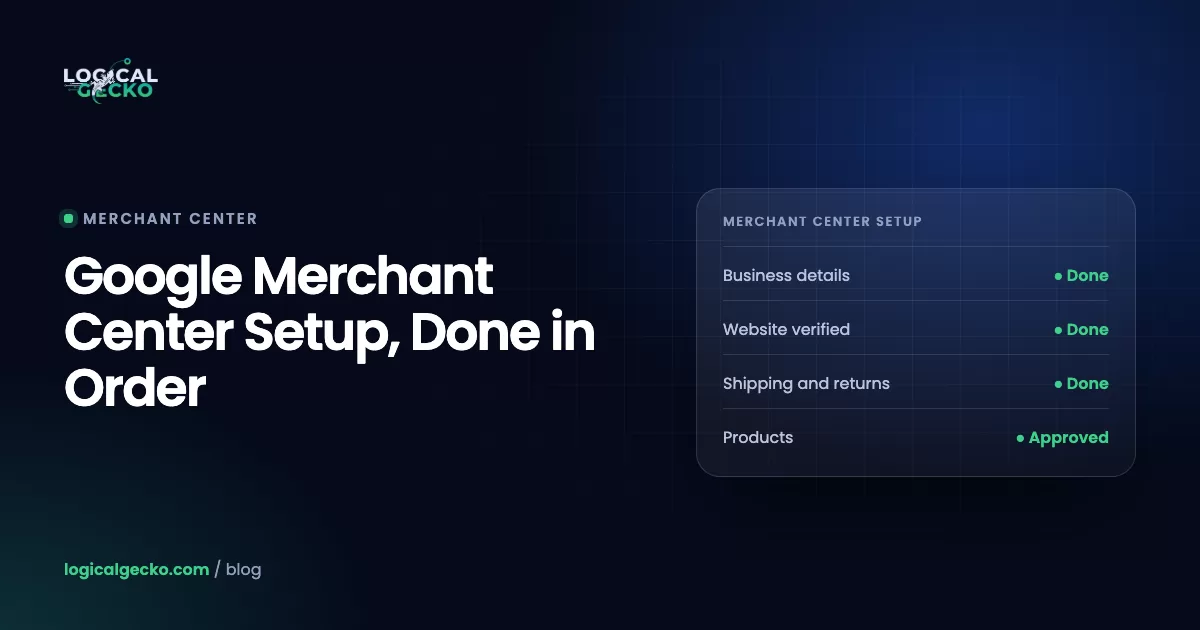
To set up Google Merchant Center, sign in with a Google Account your business will keep, add your business details, verify and claim your website, and create shipping and return policies that match your site. Then add products through your store platform, a file or Google Sheets, fix every issue, and link Google Ads. Google's first review takes up to 3 to 5 business days for Shopping ads.
Key takeaways
- Set up Merchant Center in this order: business details, website verification and claim, shipping and returns, then products, because Google won't start the first review until shipping, a data source and a claimed website are in place.
- The business country you pick when you create a Merchant Center account can't be changed later, and one Google Account email can create only one Merchant Center account.
- Shipping costs, handling times, transit times and return terms in Merchant Center must match what your website and checkout show, or Google can flag the store for Misrepresentation.
- Google says new products can stay under review for up to 3 to 5 business days for Shopping ads and a few weeks for other features such as free listings.
- Merchant Center Next is now simply Google Merchant Center: Google dropped the Next label in July 2026, so tutorials that mention a Feeds menu or checkout on Google describe retired features.
On this page
- What do you need before you set up Google Merchant Center?
- How do you create a Google Merchant Center account?
- How do you verify and claim your website in Merchant Center?
- How do you set up shipping and returns that match your site?
- How do you add products to Google Merchant Center?
- How long does Google take to review new products?
- What should you check before your products go live?
- Free listings vs Shopping ads: which should you turn on first?
- How do you link Google Ads to Merchant Center?
- What is Google Merchant Center Next in 2026?
- Should you set up Merchant Center yourself or get help?
- FAQ
What do you need before you set up Google Merchant Center?
You need a Google Account your business will keep, a live store with a working checkout, real contact details, written shipping and return policies, and clean product data. Google reviews your whole website during setup, so a half-built store gets flagged before the first product goes live.
If you are not sure what Merchant Center does or whether you need it, start with our explainer on what Google Merchant Center is. Gather these before you sign in:
- A Google Account owned by the business, not a staff member's personal Gmail.
- Your business name as people know it, your registered address and a phone number someone answers.
- An email address on your store's domain, such as support@yourstore.com.
- Admin access to your website or store platform, so you can verify the site.
- A checkout on your own site that takes at least one normal payment method, such as a credit or debit card.
- Shipping and return policy pages with real times and costs, linked in the footer.
- Product data with titles, prices, photos, stock status and a GTIN for every product that has one (see what a GTIN is).
Google also lists basic requirements for the store itself on its online store domain requirements page. Check your site against each one:
| Google's requirement | What it means for your store |
|---|---|
| Not a marketplace where other businesses sell | You sell your own products on your own domain |
| Products are shippable or downloadable | No services or quote-only items mixed into the catalog |
| A displayed, fixed price | Every product shows a price; no "call for price" or "request a quote" |
| A conventional payment method in a secure checkout | Card, debit, invoice or pay on delivery, on HTTPS |
| Purchase directly on your site | No redirect to another website to pay |
| Purchase conditions disclosed | Return and refund terms are easy to find before checkout |
How do you create a Google Merchant Center account?
Sign in on the Merchant Center sign-in page with your business Google Account, answer the setup questions about your business, where you sell and which platform you use, then complete Business info under Settings. Two of these choices are hard or impossible to undo.
- Sign in with the right Google Account. One Google Account email can create only one Merchant Center account. Use a business login and add staff as users later.
- Enter your business name. Google shows it in ads and free listings. Keep it to 40 characters, leave out suffixes such as "Inc." or "Co.", and skip promotional text and all capital letters. If the name breaks these rules, Google shows your website address instead (business name rules).
- Pick your country with care. Google says the business country can't be changed after setup, and the account time zone comes from your business address.
- Say where you sell and how people check out. Choose online, in a physical store, or both. You can change these answers later.
- Connect your store platform if offered. Linking Shopify during sign-up syncs your products automatically.
- Complete Business info. Go to Settings › Business info › Edit business details. Enter the address where the business is registered. In the support contact section, add the URL of your contact page, an email on your domain and a working business phone (Add your business information).
- Verify your phone, and your identity if asked. Google lists a missing verified phone or address, and unfinished identity verification with a government ID or business documents, among the causes of Misrepresentation problems.
Match everything exactly: Use the same business name, address and phone number in your website footer, on your contact page and in Merchant Center. Google names mismatched business details as a common reason for Misrepresentation suspensions (missing contact information).
How do you verify and claim your website in Merchant Center?
Go to Settings › Business info › Edit online store, enter your store URL starting with http:// or https://, select Continue and verify the site with one of Google's five methods. Verifying proves you own the website. Claiming reserves the URL for your account only, and one URL can be claimed by only one Merchant Center account.
| Method | Use it when | Watch out for |
|---|---|---|
| Your ecommerce platform | Your store runs on Shopify, WooCommerce or another hosted platform | The platform app often verifies and claims for you |
| You can receive a code at an email on your domain or listed on your site | Check spam; paste the code, because the link does not fill it in | |
| HTML tag or file | You can edit your homepage code or upload files to the server | The tag must sit in the <head> of the homepage |
| Google Tag Manager | You are an account-level admin in Tag Manager | The same Google user must have access to both tools |
| Google Analytics | You are an admin of an Analytics account linked to the site | Google says this may fail on Shopify; use the HTML tag there |
If a user on your account is already a verified owner in Search Console, Google treats the site as verified and you skip to claiming (About online store URL verification).
What if your URL is already claimed?
A claim conflict usually means another Merchant Center account got there first: an old account, one an agency set up, a duplicate, or one a store platform created for you. A claim on a higher level of the domain also blocks you, so a claim on example.com stops you claiming shop.example.com. Google's verification troubleshooting page suggests three fixes:
- Claim the higher-level domain, such as example.com instead of www.example.com.
- Check Search Console for other verified owners and remove access you don't recognize.
- Remove old verification tags or files, then verify and claim again in the account you want to keep.
Don't open a new Merchant Center account to get around a claim conflict or a suspension. Google's Circumventing systems policy lists new accounts created to re-enter Shopping after a suspension as an egregious violation, which means suspension without warning. Our guide to the Circumventing systems policy explains how that plays out.
How do you set up shipping and returns that match your site?
Create a shipping policy and a return policy under Products & store › Shipping and returns, using the exact costs, times and return terms your website and checkout show. Google compares the two. In the US, products need shipping settings or a shipping attribute to show in free listings.
Add a shipping policy
- Open the Shipping policies tab and select Add shipping policy. Google allows up to 20 shipping policies per country.
- Choose the countries you ship to. This is where orders go, not where your warehouse is.
- Apply it to all products, or to a group you tagged with the
shipping_labelattribute, such as oversized items. - Set shipping speed. In the US you can let Google estimate transit time by carrier. Or enter it yourself: an order cut-off time, handling days and transit days.
- Enter costs. Use a flat rate, free shipping above an order value, rates by weight or carrier rates. Google asks for costs as close as possible to your site, and says to overestimate if you can't match them exactly (shipping settings guide).
Add a return policy
In the same section, open Return policies › Add return policy. Google asks for the policy URL, countries, whether you accept returns and exchanges, item condition, the return window, the return method and any fees. Check any values Google suggests from your site before you save (return policy setup). The policy must cover change-of-mind returns as well as defective items, and people must be able to read it without logging in.
For example, a store selling scented candles would copy its own policy pages into Merchant Center like this (illustrative numbers):
| The website says | Merchant Center setting |
|---|---|
| "Order by 2 PM ET, Monday to Friday, and it ships the same day" | Order cut-off 2 PM Eastern; handling Monday to Friday |
| "Ships within 1 to 2 business days" | Handling time: 1 to 2 days |
| "Arrives in 3 to 5 business days" | Transit time: 3 to 5 days |
| "$5.95 shipping, free on orders of $50 or more" | Flat rate $5.95, with an order value condition: free from $50 |
| "Return unused candles within 30 days" | Return window 30 days; new products only |
| "Return by mail; $6.95 return shipping is taken from your refund" | Method: by mail; return fee $6.95 |
If any line on the left changes, change the matching setting the same day. A "free shipping weekend" on the site with $5.95 left in Merchant Center shows two prices for one order.
Platform syncs can overwrite your settings: Google warns that shipping settings sent by a platform such as Shopify may overwrite manual edits in Merchant Center. Shopify imports rates only from your General shipping profile, and rates from third-party shipping apps can't be imported, so set those by hand. Google for WooCommerce overwrites existing Merchant Center settings with the ones you enter in the extension.
How do you add products to Google Merchant Center?
Connect your store platform if you can, because it keeps prices and stock in sync without a second catalog to maintain. Otherwise use a scheduled file feed or Google's Sheets template. Every method starts in Products & store › Products › Add products › Add another product source.
Shopify: the Google & YouTube app
Shopify stores connect through the Google & YouTube app, which Google manages. Products available to your online store sync to Merchant Center automatically (Shopify's setup guide).
- Install the app from the Shopify App Store, then open Sales channels › Google & YouTube in your Shopify admin.
- Connect your Google Account and allow Shopify to access it.
- Clear the setup checklist. Shopify requires that the store is not in private mode, has a payment provider, shows a refund policy and terms of service in the footer, and displays contact information on a page.
- Select or create your Merchant Center account, then verify that it's you with the 6-digit code sent to your phone.
- Choose how shipping syncs: import rates from Shopify automatically, or set them up manually in Merchant Center.
- Add identifiers. Enter each GTIN in the product variant details. For products without one, add brand and MPN in the app, or mark the item as a custom product.
Per Shopify's channel requirements, the app overwrites any product feed already in the account, and a multi-client account can't connect directly.
WooCommerce: Google for WooCommerce
WooCommerce stores use the free Google for WooCommerce extension. Its setup wizard connects Merchant Center and, if you want, Google Ads (WooCommerce setup docs).
- Install the extension, then open Marketing › Google for WooCommerce in WP Admin.
- Connect your Google Account and grant every permission it asks for; the extension won't work with partial access.
- Connect or create your Merchant Center and Google Ads accounts, and check the account IDs.
- Pick your language and target countries.
- Set shipping: sync your store's shipping settings automatically (the recommended option), enter a simple flat estimate, or set complex rates in Merchant Center. Then enter shipping times.
- Skip or create a campaign. The wizard offers a Performance Max campaign. Skip it until your products are approved.
WooCommerce says product edits sync within 1 to 2 days, and automatic sync needs WordPress cron and Action Scheduler working on your server.
Other platforms: a file feed, Google Sheets or your website
If your platform is not in Merchant Center's list of connections, Google's upload guide gives these options:
- File feed. Build a file that follows the product data specification. Upload it once, or host it at a URL that Google fetches every 24 hours.
- Google Sheets. Select Use Google Sheets, fill in Google's template and select Continue. It syncs every 24 hours and suits small catalogs.
- Automatically from your website. Google reads schema.org product markup on your pages. It doesn't work for local inventory ads.
- Merchant API. For large or fast-changing catalogs built by a developer.
Adding products one by one only works for accounts that already have products. Whichever method you pick, the feed price must match the product page and checkout, and US prices leave out sales tax, per the product data specification.
How long does Google take to review new products?
Google says new products can stay under review for up to 3 to 5 business days for Shopping ads, and a few weeks for other features such as free listings. The first review checks your website as well as your products. Editing data while it runs can slow it down.
Google will not send your first data source for review until the account has these in place (initial review requirements):
- Shipping settings at the account or product level
- A data source created for your target country
- A website URL that is verified and claimed
- A verified business address
Each product then shows one of five statuses on the Products page (product status guide):
| Status | What it means | What to do |
|---|---|---|
| Under review | Google is checking the product; a first upload triggers the initial review | Wait, and avoid bulk edits |
| Processing | Google is applying an edit, which takes up to 15 minutes | Nothing |
| Approved | The product can show on Google | Watch the Needs attention tab |
| Limited | It shows only in some countries or programs, or with some data missing | Open Needs attention and fix the listed attribute |
| Not approved | A policy or data quality problem blocks it | Fix the issue, then request a review |
The first review is the riskiest moment: Google says that if it finds policy problems with your products or website at this stage, it suspends the account immediately. Later problems usually start with a warning period, and an account review can take up to 7 days. Run the next checklist before you upload products.
What should you check before your products go live?
Check that a stranger would trust your store: real contact details, clear policies, a working checkout and prices that match your feed. Most of these checks come from Google's own onboarding and review checklist. Gaps here are the usual root of Misrepresentation suspensions in the accounts we recover.
Contact details
- A street address that matches your business registration, shown the same way on your site and in Merchant Center
- A phone number that someone answers
- An email address on your store's domain, not a free webmail address
- An About page in your own words, plus the legal business name where you can show it
Policies
- A shipping policy with ship-from location, handling time, transit time and cost, matching Merchant Center
- A return policy with the window, the method and who pays return shipping, with restocking fees listed only there
- No placeholder text left in shipping, return or privacy pages, and no "hassle-free" claims your terms don't back up
Checkout and site quality
- HTTPS on every page, no broken links, and no "lorem ipsum" or "under construction" banners
- Product pages open for Googlebot: not blocked in robots.txt and not behind a password
- A test order that goes through with a normal card payment
- No fake countdown timers, made-up "only 2 left" warnings or blocking pop-ups
- Your own product photos and descriptions, not stock or supplier copies
Prices and product data
- The price in the feed matches the product page and the checkout, including sale prices
- Stock status matches the page for every variant
- Real GTINs from the manufacturer, or brand and MPN when there is none; never invented codes
- No $0 prices, sold-out placeholders or quote-only products in the feed
A store Google can trust
- Same name, address and phone everywhere
- Policies with real numbers
- Feed price equals checkout price
- Own photos and own descriptions
A store Google flags
- Contact form only, or a free webmail address
- Policy pages copied from a template
- Sale price on the site, old price in the feed
- Supplier photos and copied text
If you already received a Misrepresentation warning or suspension, don't keep editing and resubmitting. Follow our guide to fixing a Merchant Center misrepresentation suspension before you request a review, because review requests are limited.
Free listings vs Shopping ads: which should you turn on first?
Turn on free listings first; new accounts are opted in by default. Add Shopping ads once products are approved. Both read the same product data, so free listings expose data problems before you pay for clicks.
To check free listings, go to Marketing › Marketing methods and look at the Free listings card. Google says the setting gives permission to show products for free on Search, the Shopping tab, Images, Lens, Maps, YouTube and Gemini, but does not guarantee they show (Free listings for products).
The full side-by-side comparison is in our Merchant Center explainer. When you are ready to pay for placement, our guide to Google Shopping ads covers campaign structure and feed optimization.
How do you link Google Ads to Merchant Center?
In Merchant Center, go to Settings › Access and services › Apps and services › Add service, select Google Ads, choose your account and select Link. Google asks that neither account has an account-level policy violation before you link them (Google's linking guide).
- Pick the account. Choose a Google Ads account you own, or select New account. A new account's time zone and currency can't be changed later.
- Choose the link type. Link also connects Business Manager; Link to Merchant Center only does not.
- Linking to an account someone else runs? Select Account you don't manage, enter the Google Ads account ID shown at the top of any Google Ads page, and send the request. An admin approves it in Google Ads under Tools › Data manager › Google Merchant Center › Manage & link, on the Received tab.
- Build a campaign that reads your products. Standard Shopping gives you control by product group. Performance Max uses the same products across more Google channels, with more automation. Our guide to Performance Max campaigns explains when each one fits.
Keep both accounts in your business's name, even if an agency runs them. Never link a Google Ads account that is suspended: Google's policy on linked account suspension says a suspended linked account can get Merchant Center suspended too.
What is Google Merchant Center Next in 2026?
Merchant Center Next is no longer a separate version. In July 2026 Google removed the "Next" label, and the redesigned interface is now simply Google Merchant Center for every account (Google's announcement). Your account, product data, campaigns and logins did not change.
Many tutorials still describe the old interface. Signs a guide is out of date:
- It sends you to a Feeds menu or a Tools icon. Data sources now live under Settings › Data sources, and products under Products & store › Products.
- It asks you to choose "checkout on Google". That was Buy on Google, which Google retired.
- It connects a custom feed through the Content API. Google sunset that API on August 18, 2026.
Menu names in this guide match the interface as of October 2026.
Should you set up Merchant Center yourself or get help?
Set it up yourself if you run one store on Shopify or WooCommerce, sell in one country and your site already passes the checklist above. Get help if you sell in several countries, run more than one store, use a custom feed, hit a claim conflict, or had an account suspended before. Those cases leave less room for trial and error.
Our Merchant Center setup and management service sets up the account in the order this guide describes and monitors it afterward. If an account is already suspended, our Merchant Center suspension recovery service starts with a diagnosis of what Google flagged. Logical Gecko is an independent agency, not affiliated with Google. Google makes every approval decision, so nobody can promise an approval or a review date.
Frequently asked questions
How long does Google Merchant Center take to approve products?
Google says reviews can take up to 3 to 5 business days for Shopping ads and a few weeks for other features, such as free listings. During that time products show as Under review. The first review covers your website as well as your products, and editing your data while it runs can delay it. If an account-level review is needed later, Google says it can take up to 7 days.
How do I set up Google Merchant Center for Shopify?
Install the Google & YouTube app from the Shopify App Store, then open it under Sales channels. Connect your Google Account, fix anything on the setup checklist, and select or create a Merchant Center account. Verify yourself with the code sent to your phone, choose how shipping rates sync, and let products sync automatically. Add GTINs in each variant, or brand and MPN for products without one.
Why are my products not showing on Google after setup?
Most new products are still under review, which Google says can take a few weeks for free listings. If the status says Not approved or Limited, open the Needs attention tab on the Products page to see which attribute or policy failed. Also check that free listings are turned on under Marketing, then Marketing methods. An approved status gives permission to show, not a guaranteed placement.
How do I get approved on Google Merchant Center?
Get approved by making your store look and act like a trustworthy business before you upload products. Show a real address, an active phone number and an email on your own domain. Publish clear shipping and return policies, remove placeholder text and fake timers, use your own product photos, and make sure feed prices and stock match your product pages and checkout. Then let the first review finish without changes.
What if my website is already claimed by another Merchant Center account?
Find the account that holds the claim, often an old account, one an agency created, or one a store platform made for you. Google suggests claiming the higher-level domain, such as example.com instead of www.example.com, checking Search Console for other verified owners, and removing old verification tags before you verify again. Don't open a new account to get around the conflict.
Can one Google Account have two Merchant Center accounts?
No. Google says a single Google Account email can create only one Merchant Center account. If you run separate stores, such as one per country or several Shopify stores, Google recommends a multi-client account, which lets sub-accounts share the website claim. One person can still be a user on up to 100 Merchant Center accounts.
Can I change my Merchant Center business country later?
No. Google says the country you select during setup can't be changed later, and your account time zone is set from the country in your business address. Pick the country where your business is registered. The countries you ship to are a separate setting you choose later in your shipping policies.
Sources24 references
- Google Merchant Center Help: Get started with Merchant Center
- Google Merchant Center Help: Merchant Center Next is now Merchant Center (July 2026)
- Google Merchant Center Help: Add your business information
- Google Merchant Center Help: About adding a business name
- Google Merchant Center Help: About online store URL verification
- Google Merchant Center Help: How to fix: Online store URL not verified
- Google Merchant Center Help: Online store URL domain requirements
- Google Merchant Center Help: Set up shipping settings for an entire account
- Google Merchant Center Help: Set up your return policies for Shopping ads and free listings
- Google Merchant Center Help: How to upload your products to Merchant Center
- Google Merchant Center Help: Syncing your products (Google & YouTube app on Shopify)
- Google Merchant Center Help: Issues in Merchant Center (initial review requirements)
- Google Merchant Center Help: Check product visibility and status in Merchant Center
- Google Merchant Center Help: Prepare your business and website for Merchant Center onboarding and reviews
- Google Merchant Center Help: How to fix: Missing contact information on your online store
- Google Merchant Center Help: Abuse of the network (Circumventing systems, Linked account suspension)
- Google Merchant Center Help: Free listings for products
- Google Merchant Center Help: Product data specification
- Google Ads Help: Link a Google Ads account to Merchant Center
- Shopify Help Center: Set up the Google & YouTube channel
- Shopify Help Center: Google & YouTube channel requirements
- WooCommerce: Google for WooCommerce setup and configuration
- WooCommerce: Google for WooCommerce reviews and approvals
- Google for Developers: Content API for Shopping release notes (sunset August 18, 2026)

Safeer leads strategy at Logical Gecko, a Google Partner and Shopify Partner agency that runs Google Ads for eCommerce and home-service brands and recovers suspended Merchant Center accounts. Everything in these guides comes from work on live client accounts. More about the team.