Quick answer
To run Google Ads for Shopify, install Google's free Google & YouTube app, connect Merchant Center and Google Ads, fix your product data and identifiers, and confirm one purchase conversion with the right value. Then launch one Shopping or Performance Max campaign plus a brand Search campaign, with a budget and Target ROAS worked out from your margin.
Key takeaways
- The Google & YouTube app, built by Google and free to install, connects a Shopify store to Merchant Center and Google Ads, and it is the setup path both Google and Shopify document.
- Make product edits in Shopify, not Merchant Center, because Shopify data overwrites Merchant Center on every sync and an existing Merchant Center feed is replaced when you connect.
- Keep exactly one Primary purchase conversion, from the app, and remove older tags; since August 26, 2026, Shopify no longer runs app script tags on the Order status page of non-Plus stores.
- Start with one product campaign (Standard Shopping or Performance Max) plus a brand Search campaign, and move to Target ROAS once you have at least 15 conversions in 30 days.
- Set Target ROAS and budget from contribution margin: break-even ROAS is 1 ÷ margin, so a store with a 40% margin needs 2.5x to break even and 3.33x to keep 10% of revenue as profit.
On this page
- What should you set up first to run Google Ads on Shopify?
- What does the Google and YouTube app do, and what doesn't it do?
- How do you get your Shopify product feed ready for Google Ads?
- How should you track Google Ads conversions on Shopify?
- Which campaign structure should a Shopify store start with?
- How do you set a Google Ads budget and Target ROAS from your margin?
- Which Shopify mistakes break Google Ads campaigns?
- What does a 30-day Google Ads launch look like for a Shopify store?
- Are Google Ads worth it for a Shopify store?
- FAQ
What should you set up first to run Google Ads on Shopify?
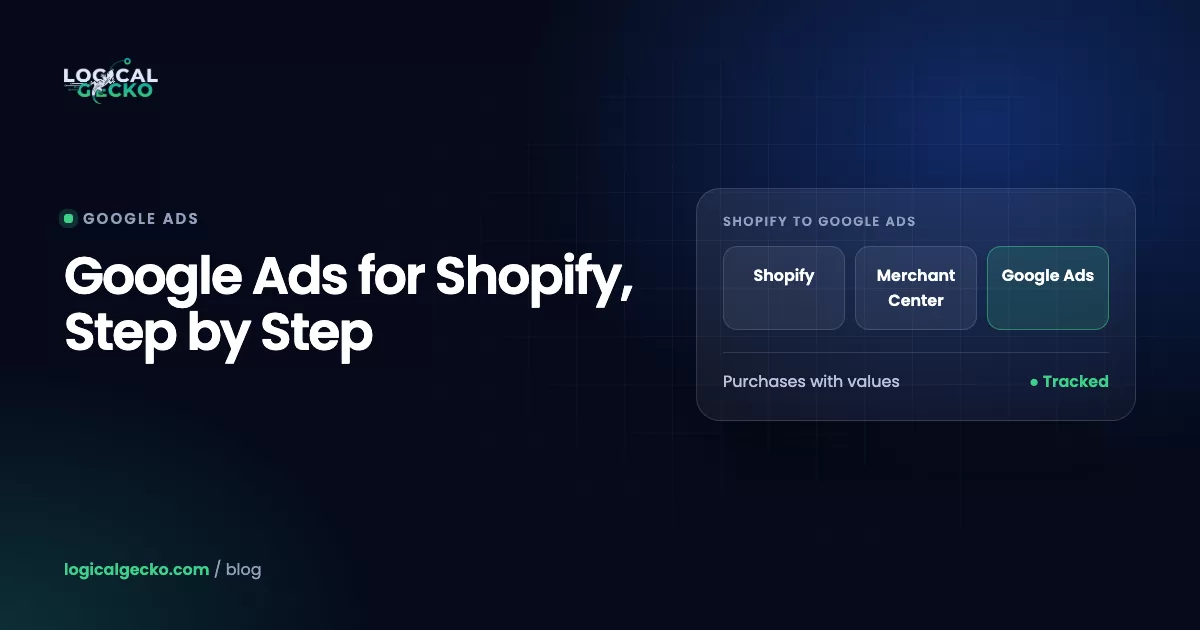
Set up three connected accounts before you build a single campaign: Google's Google & YouTube app in Shopify, a Google Merchant Center account that holds your product feed, and a Google Ads account where you buy the ads. The app links all three, so most of the work happens inside your Shopify admin.
Google & YouTube is the official app, built by Google LLC and free to install from the Shopify App Store. Shopify describes the channel as managed by Google, so Merchant Center and Google Ads questions go to Google support. Set it up in this order:
- Meet Shopify's store requirements. Per Shopify's channel requirements, the store can't be in private mode, needs an active payment provider, must link a refund policy and terms of service in the footer menu, and must show at least one contact method (email, phone, address or form) on a page.
- Install the app and connect Google. Go to Sales channels › Google & YouTube and click Connect Google Account. Use the Google account that is an administrator on your Google Ads account, because Shopify requires that for the Ads link.
- Connect or create Merchant Center. Pick your account or click Create new, then verify yourself with a phone code. The app claims your store domain automatically unless a different Google account already holds it.
- Set markets, shipping and titles. Choose countries and languages, import shipping rates from Shopify or set them in Merchant Center, and set title and description preferences.
- Connect Google Ads. In the Google Ads banner, select your account and click Connect. This turns on conversion measurement in the same step.
- Fix what fails review. The app's Products tab shows each item as Not approved, Limited, Under review or Approved. Clear the first two before you spend.
Syncing replaces your old feed. Shopify warns that an existing Merchant Center product feed is overwritten when you sync, and Google says Shopify data always overwrites Merchant Center. Make product edits in Shopify, or the next sync undoes them. Campaign changes you make in Google Ads are not overwritten.
Our step-by-step Google Merchant Center setup guide covers business details, shipping and return settings in more depth.
What does the Google and YouTube app do, and what doesn't it do?
The app syncs your catalog to Merchant Center, installs Google tags, maps your Shopify checkout to Google Ads conversion actions and can create a Performance Max campaign. It does not run your account: structure, exclusions and targets still live in Google Ads.
| Job | What the app handles | What you still do |
|---|---|---|
| Product feed | Syncs every product available to your online store and re-syncs when information changes | Add identifiers and categories, and fix disapprovals in Shopify |
| Free listings | Eligible US stores can show synced products on the Google Shopping tab at no cost | Keep the feed clean so those listings stay active |
| Shipping | Imports rates from your General shipping profile | Set rates by hand in Merchant Center if you use custom profiles or a shipping app |
| Conversion tracking | Maps purchase, add to cart and checkout started to Google Ads conversion actions | Keep one Primary purchase action, turn on enhanced conversions, remove old tags |
| Performance Max | Creates a campaign from a daily budget and a campaign name | Plan asset groups, product groups, brand exclusions and Target ROAS in Google Ads |
| Audiences | Google Ads Data Manager can import your Shopify audience segments, up to 25 lists at a time | Choose which lists to use and where |
On the Shopify accounts we manage, we use the app for the feed and conversion tracking, and build the campaigns directly in Google Ads.
If an older tutorial mentions Merchant Center Next, it is the same product. Google renamed Merchant Center Next to plain Google Merchant Center in July 2026.
How do you get your Shopify product feed ready for Google Ads?
Give every product a correct unique identifier, a Google product category and a title that says what the item is, then fix every product that isn't Approved before you spend. Shopping and Performance Max product ads have no keywords, so Google matches searches to the data in your feed.
| What Google needs | Where you set it in Shopify | What happens without it |
|---|---|---|
| GTIN (UPC, EAN, ISBN) | The barcode field on each variant | Shopify says a product that has a GTIN can't publish until you add it |
| MPN and brand | Google & YouTube app product fields, for items with no GTIN | The product has no unique identifier and may not publish |
| Google product category | Product categorization in the bulk editor or product page | Google assigns a category itself, and you might see errors |
| Variant options | Option names and values in English | Options in other languages don't sync |
| Shipping rates | Your General shipping profile | Google says rates from custom profiles sync incorrectly and cause errors |
Identifiers are where Shopify stores get into the most trouble. Shopify warns that if identifiers aren't correct, Google won't publish the products and the account could be suspended. Never type a made-up barcode to clear a warning. Our guide to what a GTIN is and where to get one explains UPC and EAN codes, and the guide to what an MPN is covers products that have no barcode, such as items you make yourself.
Titles come next. Put the words people search first: brand, product type, then details such as size, material and color. "Planter" tells Google almost nothing; "Terra Ceramic Planter, 8 Inch, Matte White, Drainage Hole" matches the searches that end in an order. The Google Shopping ads guide goes deeper on titles, product types and custom labels.
Check the app's Products tab weekly in the first month. Google's warnings differ from Shopify's, so an edit in your admin can cause a disapproval Shopify never flags (Google's syncing guide).
How should you track Google Ads conversions on Shopify?
Use the Google & YouTube app as your one Primary purchase conversion, turn on enhanced conversions, and remove every older Google Ads purchase tag. Add Google Tag Manager through a custom pixel only for an event or tool the app can't cover.
When you connect Google Ads, the app maps three Shopify events (purchase, add to cart and checkout started) to Google Ads conversion actions. Google's Shopify conversion tracking guide tells you to set the app's conversion as Primary and to remove legacy tags to prevent duplicate measurement. Enhanced conversions, which send hashed first-party data with each purchase, are turned on in Google Ads settings after you accept Google's data terms.
Google & YouTube app (default)
- Built and maintained by Google
- Purchase, add to cart and checkout started mapped for you
- Enhanced conversions with a settings switch
- No code for you to maintain
Google tag or GTM in a custom pixel
- You write, test and update the code
- Runs inside Shopify's pixel sandbox, with limits
- Shopify does not support custom pixels
- Use only for events or tools the app lacks
What changed at Shopify checkout in 2026?
Shopify stopped running app script tags on the Order status page for non-Plus stores on August 26, 2026, a year after Plus stores (August 28, 2025), and its developer docs point tracking to web pixels instead. If your purchase tracking came from an old app or from code on the order pages, confirm it still fires. A silent stop looks like this: Google Ads purchases fall while Shopify orders hold steady.
Pixels now load on the storefront, checkout, Thank you page and Order status page, and you manage them in Shopify's pixel settings. You can run Google Tag Manager as a custom pixel, but per Shopify's pixels overview its tags still run inside Shopify's sandbox, which can't detect events scraped from the page, user information, outbound link clicks or scrolling. Where consent is required, pixels run only after a visitor grants Marketing and Analytics permission, the default for new pixels.
How do you test Shopify purchase tracking?
- Place a real test order. Buy a low-priced product with Google Tag Assistant connected, then refund it.
- Check the event. Confirm one purchase event fired with the order value, currency and transaction ID.
- Check the actions. In Google Ads, open Goals › Conversions › Summary and make sure only one purchase action is Primary. Set the rest to Secondary or remove them.
- Check the value. Compare it with the order, decide whether tax and shipping belong in it, and use the same choice in your margin math.
- Reconcile after a week. Compare Google Ads purchases with Shopify orders from Google traffic for the same dates.
Google's transaction ID check drops a repeat inside one conversion action. Two separate purchase actions, both Primary, each count the sale. The full Google Ads conversion tracking guide covers statuses, attribution and enhanced conversions step by step.
Which campaign structure should a Shopify store start with?
Start with two campaigns: one product campaign for your catalog (Standard Shopping or Performance Max) and one small brand Search campaign for your store name. Choose the product campaign by how much purchase data your account already has.
| Your store today | Product campaign | Bidding | Brand campaign |
|---|---|---|---|
| New to Google Ads, fewer than 15 purchases in 30 days | Standard Shopping with your best sellers or full catalog | Manual CPC, then Target ROAS once you reach 15 conversions in 30 days | Search, exact and phrase match on your store name |
| 15 or more purchases in 30 days, clean feed, good images | Performance Max on your feed, with a brand exclusion | Target ROAS set from margin | Same brand Search campaign, always on |
| Large catalog with mixed margins | Shopping or Performance Max split into margin tiers with custom labels | A separate Target ROAS for each tier | Same brand Search campaign |
Standard Shopping suits a new account because you see the search terms, set bids yourself and add negative keywords from day one. Google requires a linked Merchant Center account before you can create one (Create a Shopping campaign). Performance Max adds YouTube, Display and Gmail inventory, and it works best once bidding has purchases to learn from. If both campaigns can show the same product, Google serves the one with the higher Ad Rank. Our guides to Google Shopping ads and Performance Max campaigns compare the two in detail.
Why run a separate brand Search campaign?
Brand searches come from people who already know your store, and inside Performance Max they make the campaign look better than it is. Google gives priority to a Search keyword that exactly matches the query over Performance Max (ad and asset group prioritization), so a brand Search campaign catches those searches. Add a brand exclusion to Performance Max as well. In Performance Max it applies to both Search and Shopping ads, and Google lets you keep Shopping ads serving on your brand terms if you want product listings to appear there.
Should you create Performance Max from the Shopify app?
We don't. The app's flow sends you to Merchant Center, asks for a daily budget and a campaign name, and creates the campaign (Google's Shopify ads steps). That skips the choices that protect profit: which products go in which asset group, a brand exclusion and a Target ROAS. Build the campaign in Google Ads; Shopify syncs never overwrite campaign settings made there.
Remarketing comes after the core campaigns are stable. Data Manager can bring your Shopify audience segments into Google Ads, and our Google Ads remarketing guide covers when lists pay off and how to set them up.
How do you set a Google Ads budget and Target ROAS from your margin?
Work backward from contribution margin. Break-even ROAS is 1 ÷ margin, a profit target is 1 ÷ (margin minus your profit goal), and a starting budget is whatever buys about 30 purchases a month at your break-even cost per purchase.
1 ÷ Contribution margin1 ÷ (Contribution margin − Profit goal)Average order value × Contribution margin30 purchases × Break-even cost per purchaseContribution margin is what is left of an order after product cost, shipping, payment fees and returns. The ROAS formula guide shows how to work it out.
For example, a Shopify store selling ceramic planters has a $60 average order and a 40% contribution margin. Break-even ROAS is 1 ÷ 0.40 = 2.5x. To keep 10% of revenue as profit, the target is 1 ÷ (0.40 − 0.10) = 3.33x, entered in Google Ads as a Target ROAS of 333%. Each order leaves $24 to pay for ads ($60 × 0.40), so 30 purchases a month at break-even cost $720, or about $24 a day ($720 ÷ 30.4).
| Contribution margin | Break-even ROAS | Target ROAS for 10% profit | Break-even cost per purchase ($60 order) | Daily budget for 30 purchases a month |
|---|---|---|---|---|
| 30% | 3.33x (333%) | 5.00x (500%) | $18 | About $18 |
| 40% | 2.50x (250%) | 3.33x (333%) | $24 | About $24 |
| 50% | 2.00x (200%) | 2.50x (250%) | $30 | About $30 |
| 60% | 1.67x (167%) | 2.00x (200%) | $36 | About $36 |
Why 30 purchases? Google lists at least 15 conversions in the past 30 days for Target ROAS in Search and Shopping campaigns (About Target ROAS bidding). We plan for twice that, so one slow week doesn't drop the campaign below the line. Real costs per purchase usually start above break-even, so treat the budget as a floor for learning, not a profit forecast.
- Start near what the campaign already does. Google says to set the target from your goals with past ROAS as a reference, so begin near your last 30 days and step toward 333%.
- Raise targets on purpose. Since August 17, 2026, budget-limited campaigns on target-based strategies deliver closer to the target, so a campaign beating its target trends toward it (Google's change notice).
- Expect daily swings. A campaign can spend up to twice its daily budget on one day, but no more than 30.4 times it in a month (average daily budget rules).
The guide to Target ROAS bidding covers how to move the target step by step without stalling the campaign.
Which Shopify mistakes break Google Ads campaigns?
The Shopify accounts we see struggling usually fail on setup, not on bids: duplicate purchase tags, wrong conversion values, a domain claimed by the wrong account and thin policy pages. Each has a clear symptom and a fix.
| Mistake | What you see | Fix |
|---|---|---|
| Duplicate purchase tags | Google Ads reports more purchases than Shopify orders from ads, and ROAS looks too good | Keep the app's purchase action as the only Primary one; set others to Secondary and remove old tags |
| Missing or wrong purchase values | Purchases with no value, or values that include tax and shipping your margin math leaves out | Check a test order's value and match it to the revenue you use for margin |
| Old tracking on the order pages | Purchases in Google Ads drop after August 26, 2026, while Shopify orders hold | Track through the app or a web pixel; remove dead script tags |
| Domain not verified or claimed by another account | Products don't sync, and Merchant Center flags the store URL | Claim the domain in the account the app uses; Google notes an old account, often auto-created by Shopify, can hold the claim |
| Missing policy pages or contact details | The app setup stalls, or Merchant Center raises a misrepresentation issue | Link a refund policy and terms in the footer, show contact details, state return windows and shipping times, delete placeholder text |
| Made-up or wrong barcodes | Products not published, with suspension risk | Use real GTINs, or an MPN plus brand for items without one |
| Shipping from custom profiles or shipping apps | Shipping errors or the wrong shipping cost in ads | Use the General shipping profile, or set rates by hand in Merchant Center |
| Brand searches inside Performance Max | Performance Max ROAS is high, but sales from new people stay flat | Run brand Search and add a brand exclusion to Performance Max |
Policy pages deserve a closer look before launch. Google's onboarding checklist asks for a verifiable street address, a working phone number, an email on your store's domain, handling and transit times, and a return policy that states the time window, the return method and who pays return shipping. It also asks you to remove placeholder text from shipping, return and privacy policies. If Merchant Center has already flagged your store, our guide to fixing a misrepresentation suspension walks through the review.
What does a 30-day Google Ads launch look like for a Shopify store?
Spend the first week on setup and tracking, launch in week two, clean up in week three and compare results with break-even in week four. Thirty days is enough to fix the setup; it is rarely enough to judge profit, so plan a second month before large budget changes.
Days 1 to 7: setup
- Store requirements met: payment provider, refund policy and terms in the footer, contact details on a page
- Google & YouTube app installed, Merchant Center connected, domain claimed
- GTIN or MPN and brand, plus a Google product category, on every product you plan to advertise
- Shipping and return settings match what your site says
- Google Ads connected, enhanced conversions on, old purchase tags removed
- Test order recorded once, with the value you expect
- Break-even ROAS, Target ROAS and daily budget written down
Days 8 to 14: launch
- Standard Shopping (or Performance Max, if you have the data) live on Approved products
- Brand Search campaign live, and a brand exclusion on any Performance Max campaign
- Search terms checked every two or three days
Days 15 to 21: clean up
- Negative keywords added for searches that don't fit what you sell
- Titles rewritten on products with many impressions and few clicks
- New disapprovals fixed in Shopify
- Google Ads purchases compared with Shopify orders for the same dates
Days 22 to 30: judge and plan
- ROAS for each campaign compared with your break-even ROAS
- Products that spend without selling moved to their own group or paused
- Target ROAS turned on where a campaign has 15 or more conversions in 30 days
- Budget for month two set, and remarketing planned
Are Google Ads worth it for a Shopify store?
Yes, when three things hold: people already search for what you sell, your margin leaves room above break-even ROAS, and your tracking counts each sale once. A store with a 20% contribution margin needs 5x ROAS just to break even, which makes paid search hard to run at a profit; a 50% margin breaks even at 2x.
Low-margin stores, including many dropshipping stores, feel this most, because each order leaves little to pay for the click. And even before you buy ads, eligible US stores can show products on the Google Shopping tab through free listings, so a clean feed pays off either way.
Structure decides a lot of the result. On our Oil-Stores account, an auto parts and lubricants catalog, a ground-up restructure of the campaigns produced 20.26x ROAS from January 1 to July 31, 2026: EUR 322,276 in conversion value on EUR 15,908 of spend. More results are in our Google Ads case studies.
If you want a second opinion before you spend, our free Google Ads audit checks your Shopify tracking, feed and campaign setup and tells you whether we found what is holding results back. If you would rather hand it off, see how we run Google Ads for Shopify and other online stores, built around margin and break-even ROAS.
Frequently asked questions
How do you set up Google Ads for Shopify?
Install the Google & YouTube app from the Shopify App Store, open it under Sales channels and connect a Google account that is an administrator on your Google Ads account. Then connect or create Merchant Center, verify by phone, choose markets and shipping, and connect Google Ads so purchase tracking starts. Fix any product that is not Approved, place a test order, and only then build your first Shopping or Performance Max campaign in Google Ads.
Is $10 a day enough for Google Ads on a Shopify store?
It is enough to test a few products, but usually not enough to feed Target ROAS. A $10 daily budget spends at most $304 a month. If each sale earns $24 of margin, that budget buys about 13 sales a month at break-even, below the 15 conversions in 30 days Google lists for Target ROAS. Start narrow on Manual CPC with your best sellers, then raise the budget once the numbers hold.
Is the Google & YouTube app free?
Yes. The Google & YouTube app is free to install from the Shopify App Store, and Google LLC builds and runs it. Your ad spend is billed separately by Google Ads, and the app listing notes that additional charges may apply. Free listings, which let eligible US stores show synced products on the Shopping tab, cost nothing. You pay only when you run paid campaigns such as Shopping or Performance Max.
Can you run Google Ads on Shopify without the Google & YouTube app?
Yes, but you take on more work. Google lets you skip the account link and add conversion IDs and labels or Google tags yourself, and Merchant Center accepts product data from other sources. Without the app you maintain the feed, the tags and the checkout tracking on your own. For most stores the app is the simpler path, because Google maintains it and maps purchase tracking to Shopify's checkout for you.
Why does Google Ads show more purchases than Shopify?
The usual cause is two Primary purchase actions counting the same order, such as the app's action plus an old Google Ads tag or a GA4 import. Timing also differs: Google Ads credits a conversion to the date of the ad click, while Shopify reports the order date. Compare the same date range, then look in Goals and Conversions for more than one Primary purchase action before you change any bids.
Can you use Google Tag Manager on Shopify checkout?
Yes, as a custom pixel, with limits. Shopify loads pixels on checkout, the Thank you page and the Order status page, but tags that Google Tag Manager loads still run inside Shopify's sandbox. The sandbox cannot detect events scraped from the page, user information, outbound link clicks or scrolling, and Shopify does not support custom pixels. Use it only when the Google & YouTube app cannot send what you need.
Do you need Merchant Center to run Google Ads for a Shopify store?
You need Merchant Center for Shopping ads and for Performance Max campaigns that show your products, because both read your product feed from it. Google requires the Merchant Center account to be linked to Google Ads before you can create a Shopping campaign. A plain Search campaign, such as one for your brand name, runs without Merchant Center, but most Shopify stores get their sales from product ads.
Sources24 references
- Shopify App Store: Google & YouTube (by Google LLC)
- Shopify Help Center: Google & YouTube
- Shopify Help Center: Google & YouTube channel requirements
- Shopify Help Center: Set up the Google & YouTube channel
- Shopify Help Center: Google Performance Max campaigns
- Shopify Help Center: Pixels overview
- Shopify Help Center: Custom pixels
- Shopify developer docs: Order status script tags (sunset dates)
- Google Merchant Center Help: Advertise your products using Shopping ads (for Shopify users)
- Google Merchant Center Help: Syncing your products (Google & YouTube app on Shopify)
- Google Merchant Center Help: Set up Shipping (for Shopify users)
- Google Merchant Center Help: How to fix: Online store URL not verified
- Google Merchant Center Help: Prepare your business and website for Merchant Center onboarding and reviews
- Google Merchant Center Help: Merchant Center Next is now Merchant Center
- Google Ads Help: Set up conversion tracking with the Google & YouTube app on Shopify
- Google Ads Help: Shopify (Data Manager connection)
- Google Ads Help: Use a transaction ID to minimize duplicate conversions
- Google Ads Help: Create a Shopping campaign
- Google Ads Help: How Performance Max interacts with other campaigns in your account
- Google Ads Help: About ad group and asset group prioritization within a Google Ads account
- Google Ads Help: About brand exclusions
- Google Ads Help: About Target ROAS bidding
- Google Ads Help: Changes to target based bid strategies
- Google Ads Help: About overdelivery and your average daily budget

Safeer leads strategy at Logical Gecko, a Google Partner and Shopify Partner agency that runs Google Ads for eCommerce and home-service brands and recovers suspended Merchant Center accounts. Everything in these guides comes from work on live client accounts. More about the team.